Vectorize a Logo Without Uploading It to the Internet
Why some logos should not leave your computer, how to check that a tool works locally and how to vectorize offline.
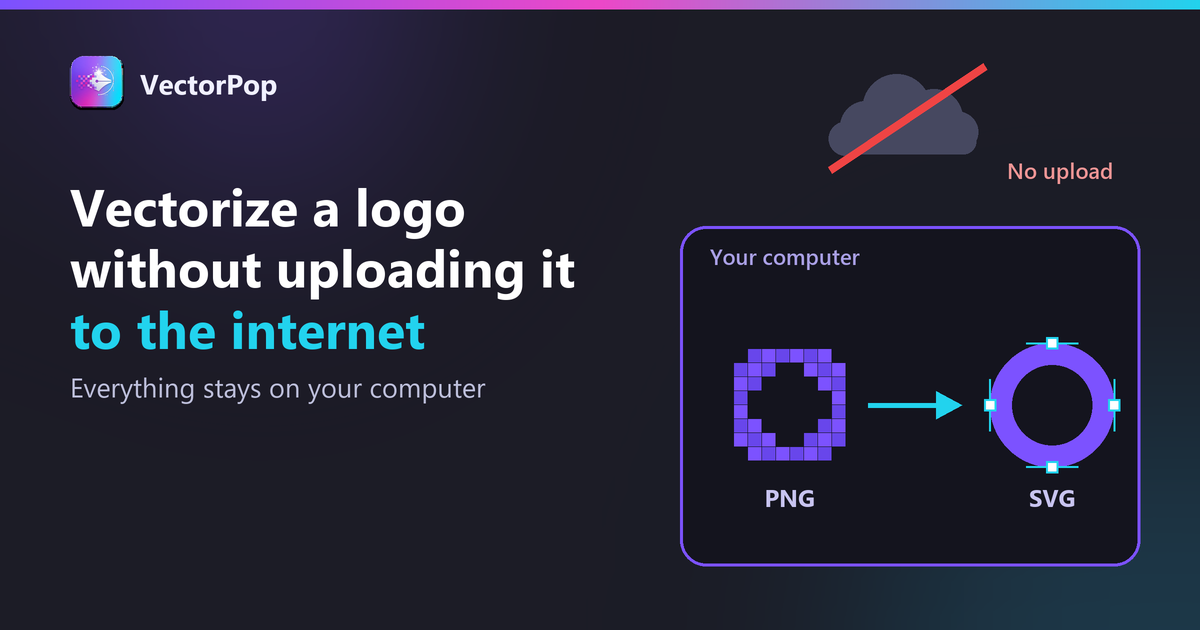
To vectorize without sending the file over the internet, use installed software that processes the image on your computer. VectorPop works this way: no account, no upload of your images, and it works offline. Always check the privacy policy of whichever tool you choose.
Why avoid uploading?
A client's logo not yet launched, an internal document, a mock-up: sending the file to a third-party service means entrusting it. Even a serious service sometimes keeps files for a while: read its terms.
How do you check that a tool is local?
- It installs and works without a connection
- Its privacy policy says where files are processed
- You can test it by cutting the network
How to do it with VectorPop?
Install it, open the logo, vectorize, export: it all happens on the machine. If you start from a PNG, the complete guide to vectorizing an image covers the method. For personal data, see the CNIL if you are in France.
Limits
A local tool does not protect against a leak from your own computer: protect your files.
Conclusion
For a sensitive file, local avoids the question. To prepare the file for your printer, read why printers ask for vector files.
Only have a PNG? Try VectorPop for free: 5 SVG exports included, nothing uploaded online, and a Pro version at €39 as a one-time payment if you need it more often.
Frequently asked questions
Does VectorPop send my images?
No, processing is local.
Does it work offline?
Yes.
Do I need an account?
No.
Got a logo stuck in a PNG?
Try VectorPop free and turn it into a clean, editable SVG — on your own machine.
Get VectorPop