How to Fix an SVG Before Laser Cutting (LightBurn, Double Lines & Nodes Checklist)
A ten-point checklist for a cut-ready SVG in LightBurn or your laser software: scale, closed paths, double lines, nodes, stray shapes, layers, text and a scrap test.
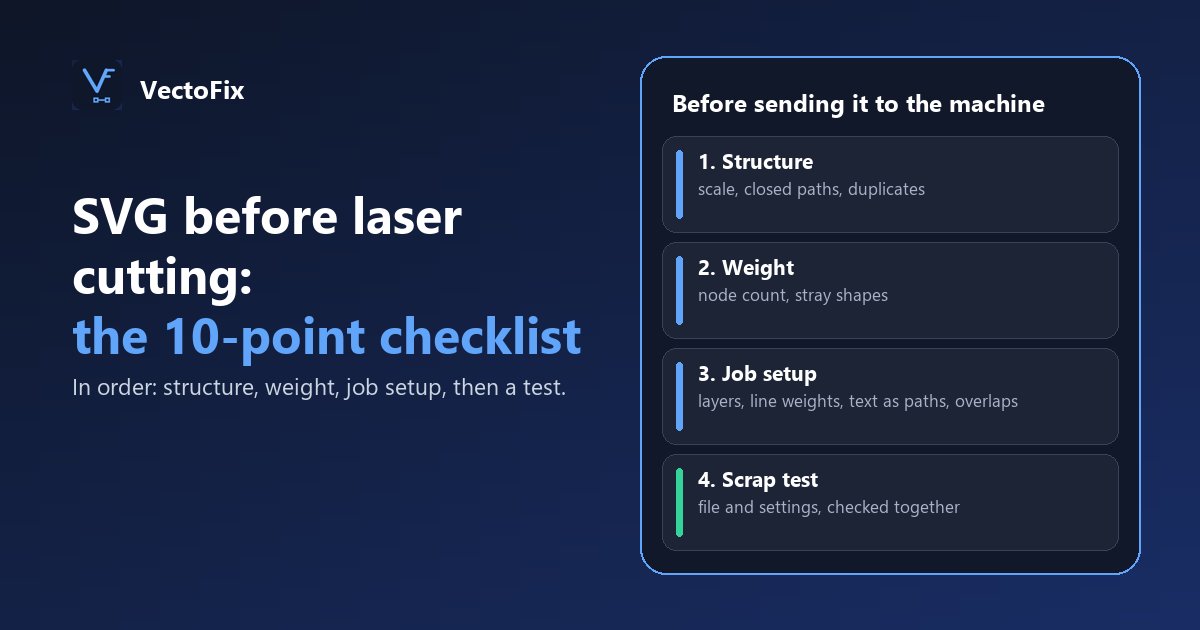
Before sending an SVG to LightBurn or another laser program, check ten things: scale, closed paths, duplicate (double) lines, node count, stray shapes, layers, line weights, text converted to paths, parts that touch or overlap, and a scrap test. Ten minutes with this list saves material, machine time and failed pieces.
This is the short, printable version. For the full method with explanations and screenshots of each step, read our guide to checking and preparing an SVG for laser cutting in LightBurn. For what each defect actually does on the machine, see why a bad SVG can cause problems in laser cutting.
How should you use this checklist?
Go through the points in order, on every file that goes to the machine, even one you have cut before: a re-exported file can pick up new defects. The list is grouped in four stages: structure, weight, job setup, then a test. Each point says what to check and how to fix it. The tool names below are LightBurn's; other laser programs have equivalents under similar names.
Stage 1: is the structure of the file sound?
- 1. Scale. Check the dimensions in your cutting software, not only in the SVG: some editors export at a different unit or resolution. After import, measure a feature whose size you know, such as a hole or the overall width.
- 2. Closed paths. Every shape that must be cut out or filled has to be a closed loop, otherwise the piece stays attached or the fill does nothing. In LightBurn, Close Path joins a shape's start and end when they are within 0.5 mm, and Auto-Join Selected Shapes joins many segments whose ends almost touch (within 0.05 mm).
- 3. Duplicates (double lines). Identical shapes stacked on top of each other make the laser cut the same line twice, which widens the kerf and can burn the edge. Select everything and use Edit > Delete Duplicates in LightBurn: it removes objects with identical shape, size and position, so check by eye for near-duplicates it leaves behind.
Stage 2: is the file too heavy?
- 4. Node count. Read it, do not guess. A simple logo with tens of thousands of nodes is a warning sign: the software slows down and some controllers stutter on long runs of tiny segments. LightBurn's Optimize Selected Shapes can reduce it; zoom in on the result afterwards, because optimisation can soften fine corners. Our article on why too many SVG nodes are a problem for cutting machines explains where to draw the line.
- 5. Stray shapes. Zoom in and look for specks, tiny islands and leftover fragments around the design. Each one is a separate move and burn: they waste time and leave marks. Select them with a selection box and delete them, then check the node count again.
Stage 3: is the job set up the way the machine expects?
- 6. Layers and colours. Put cut, score and engrave operations on distinct layers or colours, the way your software assigns settings. A cut line left on an engrave layer will not go through; an engrave area on a cut layer will be outlined instead of filled.
- 7. Line weights. Make sure stroke widths are set the way your software reads them, so thin outlines are not treated as fills, or the reverse. When in doubt, look at the preview rather than the design view.
- 8. Text as paths. Convert text to outlines before export, so a missing font on the machine's computer cannot change the shape or the spacing.
- 9. Parts that touch or overlap. Overlapping parts may be cut together, cut twice, or merged into a single shape. Leave a small gap if the design allows it, or merge them on purpose with a weld or union in your editor.
Stage 4: what should you test before the real piece?
- 10. A scrap test. Run the job, or a small part of it with the finest details, on a scrap of the same material. It checks the file and the settings together, and it is the only point on this list that catches a power or speed problem.
LightBurn's own guide to getting a design laser ready and its Edit menu reference describe these tools in detail for your version.
What if the file came from an automatic trace?
Files produced by automatic vectorization (from a PNG or a JPG) tend to have rough edges, many nodes and stray shapes, so points 4 and 5 deserve extra care. The reflex of raising the precision everywhere usually makes things worse: more nodes, and the damaged zone is often still wrong. It is better to repair the damaged zones locally, as explained in how to fix an SVG after automatic vectorization.
That is what VectoFix is built for: you paint over a damaged zone and it is retraced. The app shows fidelity and node count together on one line, because they pull in opposite directions: retracing a zone makes it more accurate and heavier, and seeing both stops you from optimising blindly. VectoFix does not check layers, stroke settings or duplicates; those stay with your editor and your cutting software.
Why does the order matter?
Fix structure first (scale, closed paths, duplicates), then weight (nodes, stray shapes), then job setup (layers, line weights, text, overlaps), and test last. That way you never spend time optimising a shape you will delete later, and deleting duplicates before counting nodes gives you a real figure instead of a doubled one.
Conclusion: ten minutes before, a lot of material saved
A checklist beats memory, especially at the end of a long day in the workshop. Run it on every file that goes to the machine and keep it next to the laser. You can try VectoFix with 3 free HD exports; Pro is a one-time €39 purchase, with no subscription.
Frequently asked questions
What should I check before laser cutting an SVG?
Scale, closed paths, duplicates, node count, stray shapes, layers, line weights, text as paths, overlapping parts, then a scrap test.
How do I remove double lines in LightBurn?
Select everything and use Edit > Delete Duplicates. It only removes exact copies (same shape, size and position), so check the result by eye.
Why convert text to paths?
So the shape does not change if the font is missing on the computer that drives the laser.
Do I need to test on scrap?
It is strongly advised for expensive material or fine details: it checks the file and the power and speed settings together.
Does VectoFix check all of this?
No. It helps with trace quality and node count by repairing damaged zones; the other checks are done in your editor and cutting software.
A vector export that lost some detail?
VectoFix shows you exactly where, and lets you fix it with a single brush stroke — full trial, on your own machine.
Get VectoFix