Blurry Logo When Enlarged: Why, and How to Get a Sharp Logo
Does your logo turn blurry or pixelated as soon as you enlarge it? Why a PNG cannot grow, how to check your file, and the 3 ways to get a sharp logo.
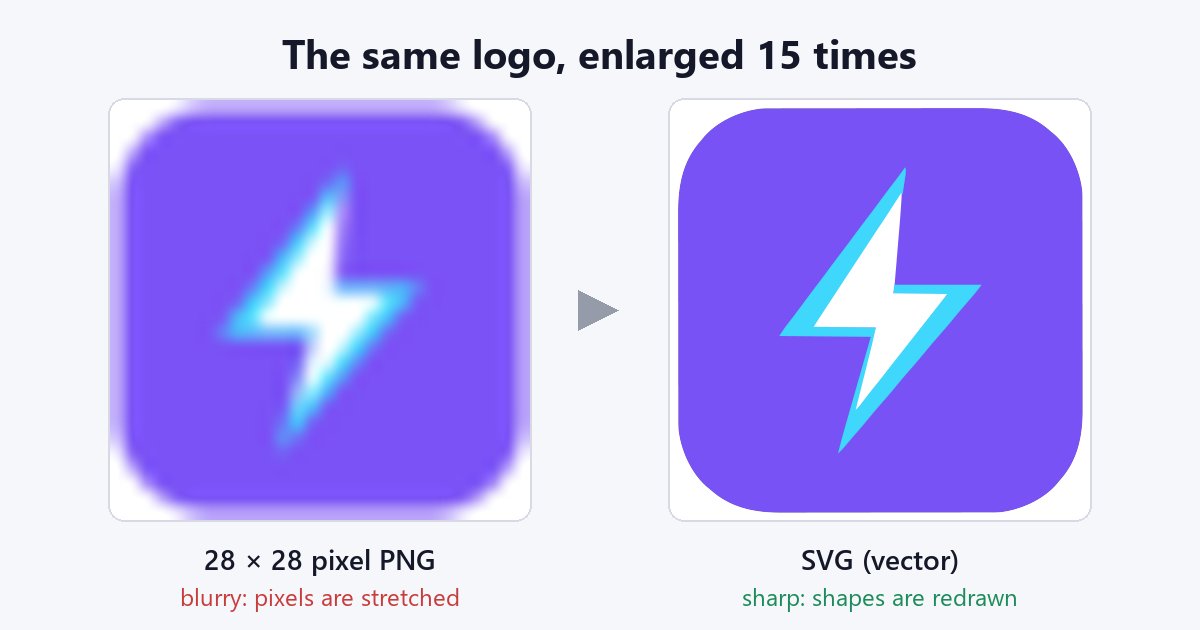
A logo turns blurry when enlarged because it is stored as pixels (PNG, JPG): an image 300 pixels wide contains 300 pixels, not one more. When you enlarge it, the software stretches those pixels and invents in-between colours, which gives soft or jagged edges. To get a logo that is sharp at any size you need a vector file (SVG, AI, EPS or vector PDF): either the designer's original, or a vectorized version of the PNG.
The problem nearly always shows up at the worst moment: the logo looks perfect on the website, then the printer, the embroiderer or the banner maker replies that it is "unusable". This article explains where the blur comes from, how to find out in two minutes which file you really have, and which fix to choose for your situation.
Why does a logo get blurry when you enlarge it?
A PNG or JPG image is a grid of small coloured squares, the pixels. Each has a fixed position and colour. At the original size the eye cannot tell them apart. But if you double the size, each pixel has to cover four times the area: the software has no new information, so it calculates transition colours between neighbouring pixels. This is called interpolation, and it is what makes edges blurry.
An order of magnitude helps. Printed 10 cm wide at standard quality (300 dots per inch), a logo needs about 1,200 pixels across. The same 300-pixel logo stretched over a 2-metre banner means one pixel for almost 7 millimetres: every square becomes visible to the naked eye.
JPG adds one more defect: its compression creates small blotches and halos around sharp edges, exactly where a logo has the most. Enlarged, a JPG logo combines blur and artefacts. For the difference between formats, see SVG vs PNG: which one do you actually need.
How can you tell whether your logo is a real vector file?
A vector file does not contain pixels but shapes described by points and curves. The software redraws them at every size, which is why the edge stays sharp at 2 cm and at 2 metres. Three simple checks:
- The extension: .svg, .ai, .eps or .pdf can be vector; .png, .jpg, .webp and .gif never are.
- The zoom test: open the file and zoom to 800%. If the edges stay smooth it is vector; if they turn into stair steps or blur, they are pixels.
- The fake SVG trap: an .svg file can simply contain a PNG image. Open it in a text editor: if you see an <image> tag followed by a long string of characters, it is a wrapped PNG, not a real vector. The same goes for a PDF that only contains a picture of the logo.
Renaming a PNG to .svg changes nothing inside: it is the most common mistake, and printers spot it immediately. It is also why they insist, as explained in why printers ask for vector files.
What are the ways to get a sharp logo?
There are three, from the most reliable to the fastest. The right choice depends on what you have at hand.
1. Get the source file
If the logo was created by a designer, an agency or a printer, there is almost always a vector original (.ai, .eps, .svg or .pdf). Ask for it: it is free, immediate and perfectly faithful. Also check old email threads and the designer's delivery folders.
2. Vectorize the PNG
If all you have is the image, vectorization software automatically re-traces the edges as curves. On a simple logo (flat colours, readable text, clean shapes) the result is usually good within seconds. The full method is in how to convert a PNG logo to SVG.
3. Have the logo redrawn
If the logo is tiny, heavily compressed or full of fine detail, a designer can redraw it by hand. It takes longer and costs money, but it is the only way to recover details the file no longer contains.
How do you vectorize a logo so it stays sharp?
A few habits make the difference between a clean SVG and an approximate one:
- Start from the largest version available: a logo recovered at 1,000 pixels will always trace better than its 100-pixel thumbnail.
- Remove the background if it is a solid colour, so you do not vectorize a white rectangle around the logo.
- Pick the setting that matches the logo: flat colours, detailed colour or black and white. A photo setting on a simple logo produces thousands of useless shapes.
- Check the result zoomed in, especially thin letters, small text and corners.
- Export to SVG, then to PDF or EPS only if your supplier asks for it.
VectorPop was built for exactly this. You drop the PNG, pick "Flat logo (color)", "Detailed color logo" or "Black & white / line art", a solid background can be removed automatically, and the preview shows the result before export. Everything happens on your computer, without uploading the logo: see vectorize a logo without uploading it to the internet.
What about AI image upscalers?
AI upscaling tools produce a bigger PNG by inventing plausible details. For a photo shown on a screen the result can be impressive. For a logo it is riskier: letters can be slightly distorted, colours changed, corners rounded. Above all, the result is still a pixel image: bigger, but still limited to its size, and still rejected for cutting, embroidery or screen printing, which need outlines.
An upscaler can help for a one-off use on screen. For a logo that will be printed, cut or used at several sizes, vector remains the right answer.
What if the logo is tiny or heavily compressed?
This is the real limit of vectorization: it redraws what it sees, it does not invent what is missing. A logo 50 pixels wide does not hold enough information for thin letters to stay separate. Expect merged letters, uneven edges or small details that disappear.
- First look for a bigger version: the company website, an email signature, a PDF document, social media profiles.
- Vectorize anyway to get a base, then have the damaged areas fixed.
- If the logo must be faithful down to the detail (registered trademark, premium printing), have a designer redraw it.
For damaged areas of a trace, VectoFix, from the same team, compares the SVG with the original image, shows what was lost in red and re-traces only the areas you paint over.
Conclusion: blur comes from pixels, sharpness comes from shapes
A blurry logo is not a failed logo: it is a logo saved in a format that cannot grow. First check what you really have, ask for the original if it exists, otherwise vectorize from the largest version you can find. For an overview of the method, the complete guide to vectorizing an image covers every step.
Only have a PNG? Try VectorPop for free: 5 SVG exports included, local processing on Windows, Linux or Android, and a Pro version at a one-time €39 if you need it more often.
Frequently asked questions
Why is my logo blurry when I enlarge it?
Because it is stored as pixels (PNG, JPG). Enlarging stretches those pixels without creating detail, which makes edges blurry or jagged.
How do I make a logo sharp at every size?
Use a vector file (SVG, AI, EPS or vector PDF): get the original from its creator, or vectorize the PNG.
Is renaming my PNG to .svg enough?
No. The content is still a pixel image; only vectorization turns pixels into shapes.
Can an AI image upscaler replace vectorization?
For a one-off use on screen, sometimes. For printing, cutting or embroidery, no: the result is still pixels and can distort letters.
Can you vectorize a very small logo?
Yes, with limits: vectorization does not recover missing details. Start from the largest version possible, or have the logo redrawn.
Got a logo stuck in a PNG?
Try VectorPop free and turn it into a clean, editable SVG — on your own machine.
Get VectorPop