Logo for Vinyl Cutting (Cricut and Others): Vectorizing to Cut
Few colors, few shapes, parts thick enough: how to vectorize a logo for a Cricut or Silhouette, with real measurements on the settings that matter.
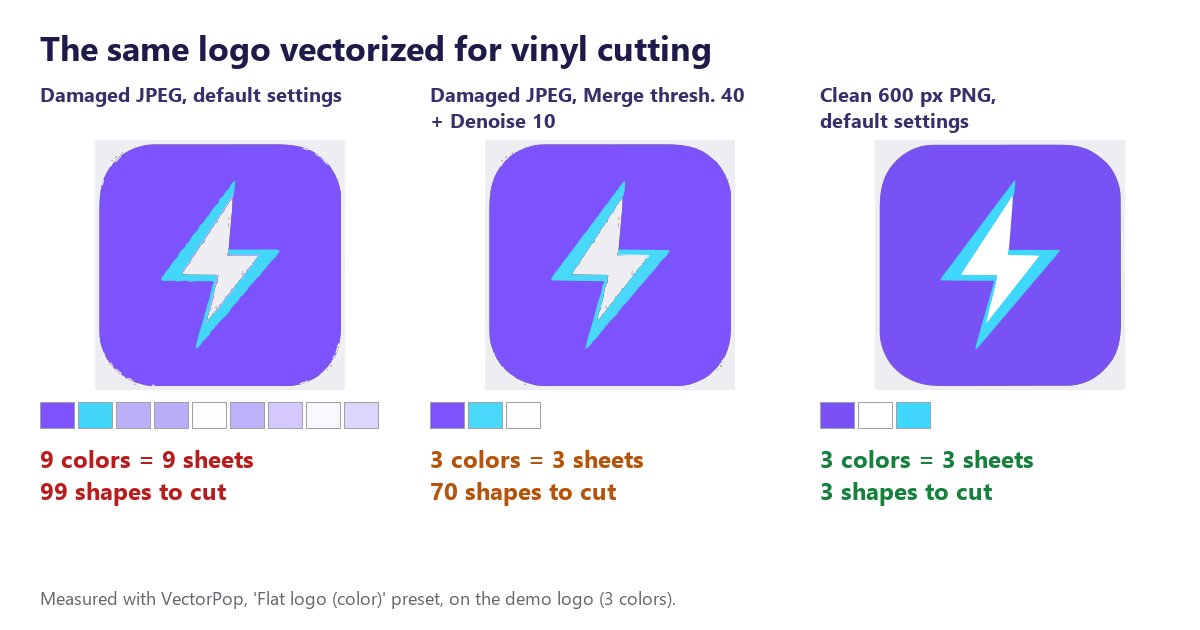
To cut a logo in vinyl with a Cricut, a Silhouette or another machine, you need a simple SVG: as many colors as vinyl sheets, as few shapes as possible, and parts thick enough to survive weeding. The best setting is still the source: a sharp, large enough PNG gives a clean file right away, while a compressed JPEG multiplies stray colors and small pieces. Vectorize in flat colors, merge close shades, filter out specks, then cut a small test.
This article goes from the logo to the cut-ready file. The numbers come from a real test: VectorPop's demo logo (a lightning bolt on a purple background, 3 colors) vectorized under several conditions. If your SVG already exists and causes cutting problems, SVG for Cricut: common vectorization problems is a better fit.
Why does a cutting machine need an SVG?
A cutting machine does not read pixels: it moves a blade along outlines. A vector file gives it exactly that, closed paths it follows one by one. A PNG imported as is forces the machine's software to guess the outlines itself, with far less control than you have when vectorizing.
SVG has a second advantage: it stays equally sharp at every size. The same file works for a 5 cm sticker and a 60 cm shop window lettering, which an enlarged PNG cannot do, as the blurry logo example shows. For the formats your software accepts, check Cricut help or your machine's documentation: they vary between programs and versions.
How many colors should you keep, and how?
In vinyl cutting, one color equals one sheet, and usually one layer in the machine's software. A 3-color logo should therefore give a 3-color SVG, not 9. This is where source quality matters most. In our test, with the 'Flat logo (color)' preset and default settings:
- Sharp 600-pixel PNG: 3 colors, 3 shapes. The file is ready to cut.
- The same logo saved as a heavily compressed JPEG: 9 colors and 99 shapes. Compression created in-between shades (pale mauves around the bolt) that the vectorization faithfully kept.
The reflex would be to lower the 'Colors' slider. Bad idea: it sets detection precision, not the exact number of colors in the result. At 2 or 3 on the sharp PNG, the white and cyan of the bolt merged into a single light blue: the logo lost a real color. The right tool is 'Merge colors' with the 'Merge thresh.' slider: raised from 24 (the default) to 40 on the damaged JPEG, it brought the result back to the logo's 3 real colors without sacrificing any. Going further, to 60, changed nothing.
For a single-color logo, the simplest option is the 'Black & white / line art' preset: it produces a single layer, whatever the source. On our damaged JPEG, it gave one color where the color preset found 9.
How do you avoid dozens of small pieces?
Once colors are sorted, the number of shapes remains. On the damaged JPEG, even brought back to 3 colors, the SVG still had 85 shapes: fragments along the edges, isolated dots in the background. Each one is a piece the blade cuts and you have to pick out with a weeding hook. The 'Denoise' slider removes shapes below a size threshold: raised from 4 to 10, it brought the file down to 70 shapes. Better, but still far from the 3 shapes a good source gives.
The test's conclusion: no setting fully rescues a bad image. Before touching the sliders, look for the largest version of the logo you have, as a PNG rather than a JPEG; our guide to converting a JPG to SVG explains why. Settings then finish the job; they do not save it.
If a few unwanted shapes remain, VectorPop Pro lets you click a flat area to delete it ('Remove a shape'). For deeper cleanup, merging pieces, thickening, simplifying, the step-by-step Inkscape method is in how to clean up a vector before vinyl cutting.
What should you do with stacked colors?
This is the point almost nobody explains. VectorPop, like many vectorizers, produces 'stacked' colors: the background color is a solid shape and the other colors sit on top of it. In our test, the purple shape runs entirely under the white bolt and its cyan outline. On screen, you see no difference. When cutting, the purple sheet is cut as a single block, with no hole where the bolt goes.
That is not necessarily a flaw. For layered vinyl, where colors are placed on top of each other, it is exactly what you want: the slight overlap prevents gaps between two colors. If, however, you want the colors side by side without extra thickness, you need to hollow out the lower layer with your machine software's shape cutting tool (Slice in Cricut Design Space). Both approaches are compared in the article on SVGs for Cricut.
How should you prepare the file before the first cut?
Once the SVG is exported, a few checks avoid wasting a sheet of vinyl:
- Count the layers on import: there should be as many as planned colors. If there are more, go back to 'Merge thresh.'.
- Set the logo to its final size before judging details. A line that looks fine on screen can be too thin once reduced to 4 cm wide, and tear during weeding.
- Spot small letters and thin points: at a small size, thickening them or simplifying the logo beats hoping the blade will spare them.
- Cut a small test on a vinyl offcut before the final piece.
For the vectorization steps themselves, with the exact interface labels, see vectorize a PNG logo step by step. One last point, not a technical one: if the logo is not yours, a registered trademark cannot be freely reproduced for sale. For commercial use, ask the owner's permission.
Which tool should you use to vectorize a logo for cutting?
Your machine's software can often turn an image into outlines, and that is enough for a well-contrasted single-color shape. For a multi-color logo, a dedicated vectorizer gives more control over the number of colors, shade merging and speck filtering, which are precisely the three settings that matter for cutting.
VectorPop does this on your computer, without uploading the image: 5 free SVG exports, then €39 once for Pro, no subscription. The test in this article was run with the current version and the demo logo bundled with the software; your numbers will vary with your logo, but the takeaway, a good source beats every setting, holds every time.
Conclusion
A good vinyl cutting file comes down to three steps: start from the best possible source, adjust color merging rather than the number of colors, filter out specks. Then check stacked layers and detail size, and cut a test. Simple, thick, tested: that is the rule that saves the most vinyl.
Frequently asked questions
Which file format should I use for a Cricut?
SVG is the most common vector format for cutting. Accepted formats depend on the machine's software and its version: check them in your manufacturer's help.
Why does my SVG have more colors than my logo?
Often because the source is a compressed JPEG: compression creates in-between shades that vectorization keeps. Start from a sharp PNG or merge close shades ('Merge colors', 'Merge thresh.').
Should I lower the number of colors to get fewer layers?
Not first. In our test, lowering the 'Colors' slider merged two real colors of the logo. Raising the merge threshold removed the false shades and kept the real ones.
Why is the background color cut as a single block?
Because colors are stacked: the lower shape runs under the others. That suits layered vinyl; to place colors side by side, hollow it out in the machine's software.
Can a photo be cut in vinyl?
Not as is: a photo contains thousands of shades. It must first be simplified into a few flat areas, and the result will be a graphic interpretation, not a faithful reproduction.
Got a logo stuck in a PNG?
Try VectorPop free and turn it into a clean, editable SVG — on your own machine.
Get VectorPop