How to Fix Tiny Shapes and Artifacts in an SVG
Dust, specks and micro-shapes after a trace: where they come from, how to find and remove them and how to stop them coming back, with real speckle-filter numbers.
Tiny shapes and artefacts in a traced SVG are almost always noise from the source image that the tracer faithfully turned into shapes. Prevent them with a cleaner source and a sensible speckle filter, find them by zooming in and checking the node count, and delete only the ones that carry no meaning. If a whole area is affected, re-trace that area rather than cleaning it by hand.
You zoom in on a clean-looking logo and find hundreds of tiny dots, specks along the edges or microscopic shapes hidden inside larger ones. They add nodes, make the file heavier and cause trouble when it is cut or embroidered: a laser or a vinyl cutter treats each speck as a path to follow. This article explains where they come from, how to spot them, how to stop them and how to remove the ones that remain. For their effect on cutting machines, see why too many SVG nodes are a problem for cutting machines.
Where do tiny shapes come from?
A tracer does not know what is dirt and what is design: it outlines every patch of colour that is large enough to pass its filter. The usual sources are:
- Compression dust: JPG blocks and stray pixels around edges, invisible at normal size
- Anti-aliasing fringes: the faint in-between pixels along every edge, traced as thin slivers of an intermediate colour
- Scan noise: paper grain, dust and dirt from scanned artwork
- Colour splitting: a gradient or soft shadow broken into many small patches of near-identical colours
- Overly detailed settings: a very low speckle filter or a very high number of colours, which ask the tracer to follow every pixel
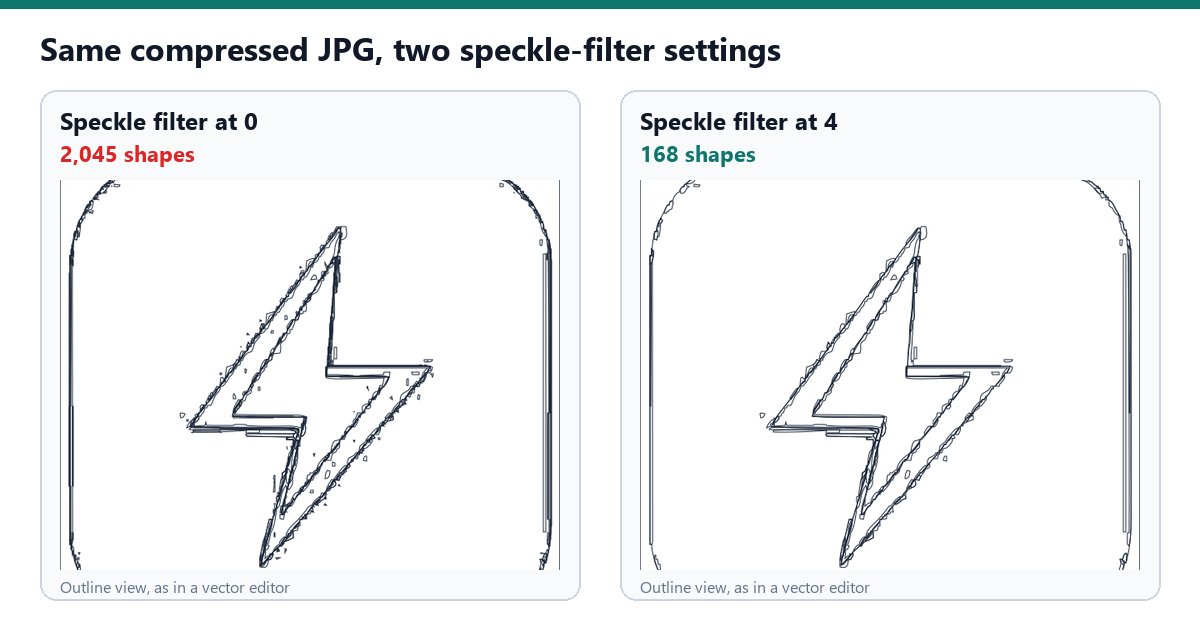
The scale of the problem is easy to underestimate. In our own tests, re-tracing a damaged area of one image with VectoFix's speckle filter at 0 produced 17,608 curves, against 1,122 with the filter at 2: fifteen times the weight, for a barely visible gain in faithfulness. Most of those extra curves were exactly the kind of specks this article is about. The image above shows the same effect on our demo logo saved as a heavily compressed JPG: 2,045 shapes with the filter at 0, 168 with the filter at 4.
How do you find them?
- Zoom to 400 percent and scan the edges and the empty areas, where specks hide best
- Fill shapes with a bright colour or switch to outline view in your vector editor, so small objects stand out against the background
- Separate the pieces: in Inkscape 1.3 and later, Path > Split Path breaks a compound shape into its separate parts, which makes small islands selectable on their own
- Watch the node count: a simple-looking logo with thousands of nodes is a warning sign. VectoFix shows fidelity, node count and file size side by side after each trace, so a jump in nodes is visible at once
How do you prevent them?
Prevention is cheaper than cleaning, and it starts before the trace.
- Use a clean, large source, preferably a PNG rather than a recompressed JPG
- Raise the speckle filter on noisy sources. In VectoFix it runs from 0 to 20 and removes small isolated spots. The default is 4 for the Flat and Black and white presets and 2 for the Detailed preset, which keeps more fine texture
- Lower the number of colours for flat artwork: the Flat preset works with 64 colours, the Detailed one with 256; a two-colour logo does not need either
- Raise colour merging (0 to 100, 24 by default in the Flat preset) when near-identical shades produce many small patches
How far should you push the filter? We measured it by re-tracing damaged areas on three images, comparing the fidelity gained in those areas against the nodes added to the whole file:
- filter 0: +76 % fidelity, but +67 % nodes
- filter 2: +70 % fidelity, +27 % nodes
- filter 4: +68 % fidelity, +23 % nodes
- filter 8: +62 % fidelity, +14 % nodes
Between 2 and 4 you lose almost nothing visible and save nodes; beyond 8 you start losing real detail. Always check the preview after each change, because too high a filter removes small parts of the design too, as explained in why your vectorized SVG lost detail.
How do you remove the ones that are left?
Two approaches, depending on how many there are.
A few isolated specks: select them and delete them in your vector editor. Work carefully near real details, such as the dot of an i, a registered mark or the gap in a letter, and keep what carries meaning. Note that a Simplify command reduces the nodes inside each shape but does not delete the shapes themselves: a speck stays a speck, just with fewer points.
Hundreds of specks, or one dirty area: do not clean by hand. Re-trace instead. Raising the global filter works when the noise is everywhere, but it also thins out the clean parts of the image. That is the limit of one setting for the whole image, explained in why one slider can't fix a whole vector trace. In VectoFix you paint over the affected area and only that area is re-traced with its own settings; the Light mode uses a stronger speckle filter (8 instead of 4) and roughly halves the nodes of the repaired area. The method is detailed in how to fix a bad vectorization without starting over.
What if specks are part of a deliberate texture?
Some artwork, such as a stipple effect, halftone dots or a deliberately grainy illustration, is made of small dots. In that case the filter is the enemy: lower it, accept the higher node count and keep the texture where it belongs. Then ask what the file is for. On screen or in print, thousands of dots are fine. On a cutter, an engraver or an embroidery machine, they can mean hours of machine time or tiny pieces that tear. A practical middle ground is to keep the texture in one area and trace the rest of the image with the usual filter. Before sending such a file to a laser, run through this checklist for fixing an SVG before a laser cutter.
Conclusion: clean the source, filter sensibly, delete the rest
Tiny shapes are a trace-quality problem with a simple order of fixes: a cleaner source first, a speckle filter between 2 and 4 for most images, then local re-tracing or manual deletion for what remains. Check the node count at each step: it tells you more than your eyes at normal zoom. VectoFix lets you try this on your own files with 3 full-resolution exports; Pro is a one-time €39.
Frequently asked questions
Why does my SVG have tiny dots I cannot see in the original?
Compression dust, scan noise or faint edge pixels were traced as shapes. They are invisible at normal size in the image but become real objects in the SVG.
How do I stop specks appearing?
Use a cleaner source, raise the speckle filter on noisy images and reduce the number of colours for flat artwork.
Will the speckle filter remove real details?
If set too high, yes. In our measurements, going from 4 to 8 cut the extra nodes from 23 % to 14 % but lost 6 points of fidelity gain. Check the preview after each change.
Do tiny shapes matter for cutting?
Yes. Each one is a path the machine has to follow, which adds time and can produce pieces too small to hold.
Can I delete them in bulk?
Splitting compound paths makes small pieces selectable; for large numbers, re-trace the affected area with a stronger filter rather than deleting by hand.
A vector export that lost some detail?
VectoFix shows you exactly where, and lets you fix it with a single brush stroke — full trial, on your own machine.
Get VectoFix