Remove the White Background From a Logo (and Get a Transparent Background)
A logo on a white background placed on a colour leaves a white box. How to remove a plain background, which tolerance to pick (real measurements) and what happens to the white inside the logo.
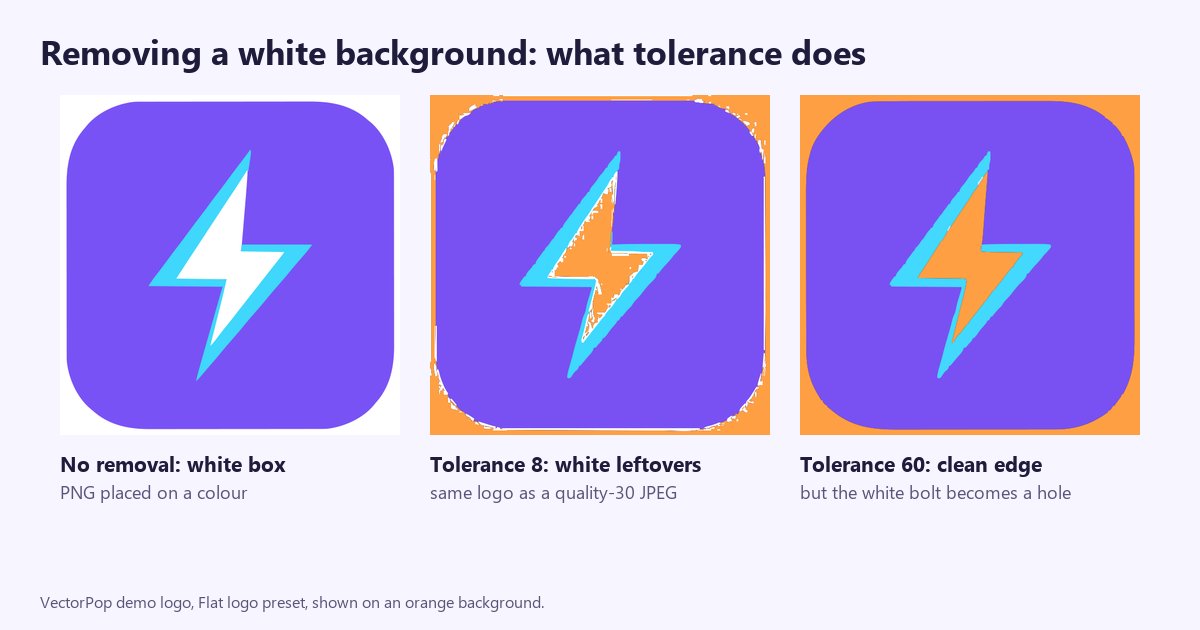
To remove a white background, tick 'Remove background' in VectorPop and adjust 'Bg tol.': everything close to the colour of the four corners becomes transparent before vectorizing. The feature is in the free version. One limit to know: it erases that colour everywhere in the image, including a white you want to keep inside the logo.
This article explains what to set, what the feature really does (we measured it on VectorPop's demo logo) and what to do when the background is not plain.
Why is a white background a problem?
A logo saved as a PNG or JPEG on a white background has no transparency: white is a colour like any other. Placed on a photo, a T-shirt, a coloured website or a document, it shows up inside a white rectangle.
Vectorizing the logo without removing the background fixes nothing: the white is traced as one more flat shape. On our demo logo, the result has 4 paths, 2 of them white; with the background removed, only 2 remain, the purple and the cyan. An SVG handles transparency very well: an area with no path is simply empty, and the browser or layout software shows whatever is behind it.
How do you remove a plain background in VectorPop?
- Open the logo in VectorPop and pick the 'Flat logo (color)' preset. The app also offers a 'Logo on a flat background to remove' recipe that sets these options for you.
- Tick 'Remove background'.
- Adjust 'Bg tol.' (0 to 120, 32 by default) while watching the preview, which updates by itself.
- Export as SVG.
Colour-based background removal is part of what the free tier keeps, within its SVG export quota. The general vectorizing steps, with the exact interface labels, are in vectorize a PNG logo step by step.
How does the feature decide what is background?
It takes the colour of the image's four corners (their median value), then makes transparent every pixel whose colour lies within the tolerance of that colour, the distance being computed over the red, green and blue channels. All of this happens before tracing. Two practical consequences:
- The four corners must be background. If the logo touches a corner (a tightly cropped image) or the background is a gradient, the estimated colour is wrong.
- The test is global: any pixel close to the background colour disappears, whether or not it touches the image edge.
Which tolerance should you choose?
We measured on the demo logo (a white bolt outlined in cyan on a purple square, rendered at 600 pixels on a white background), with the 'Flat logo (color)' preset:
- Clean PNG: from 0 to 120 the result is the same, 2 paths and transparent corners. No special tolerance is needed.
- The same logo saved as a quality-30 JPEG: tolerance 8, 182 paths and white leftovers around the logo; tolerance 32 (the default), 47 paths; tolerance 60, 4 paths and a clean edge.
JPEG compression scatters off-white and grey shades along the edges; the tolerance exists to catch them. Start at 32, raise it if leftovers remain, lower it if the logo loses its light tones.
Mind the opposite direction: a light colour in the logo, close to the background, disappears too. A very light grey (235, 235, 235) lies about 35 away from pure white: it survives at 32 and disappears at 60.
What about white you want to keep inside the logo?
This is the main trap. In our logo the bolt is white: 4.75% of the image is white surrounded by colour, against 11.1% of background white. With 'Remove background', the bolt leaves with the background and leaves a hole, through which you see whatever is behind (orange on our image). The feature has no option to protect that white, and even a tolerance of 0 erases pure white.
A workaround we tested: give that white a very slightly different shade in the source file, for example (250, 250, 250) instead of (255, 255, 255), then lower the tolerance to 8 or less. In our test, at 4 and at 8 the bolt stayed (4.7% of the image still light and opaque) and the background went (11% transparent); at 32 it disappeared. The price: editing the source in an image editor, and only on a clean source, because on a compressed JPEG such a low tolerance leaves leftovers (see above).
What if the background is not plain?
Photo, gradient, drop shadow: the colour method is not enough. VectorPop then offers 'AI background removal', designed for complex backgrounds. It needs a module of about 120 MB (downloaded once), it is slower and left out of the automatic preview: you have to hit 'Vectorize' yourself. It is a Pro feature that you can still try in the preview; the lock only comes down at export.
Another Pro tool, 'Remove a shape': you click a shape in the SVG to remove it, which suits a background that is a separate shape. Check the result: because colours are stacked, a solid shape can remain underneath. On our logo, one click on the background removed both white areas (background and bolt) but did not make the corners transparent, because the purple square fills the whole image. It is therefore not a substitute for 'Remove background' for a logo on white.
How do you check the result?
Place the logo on a bold colour, not on white: a white viewer background hides white leftovers. Zoom in on the edges and on light areas inside the logo. If you instead want a deliberate white background for printing, the 'White background on export' option adds a white background to SVG, PNG and PDF files instead of transparency.
For other uses where an extra background is costly, see logo for vinyl cutting (one more shape to cut) and logo for embroidery. If the source is blurry or too small, start with blurry logo when enlarged, and for the general method, the complete vectorizing guide.
Conclusion
Plain background: 'Remove background' with a tolerance around 32, higher for a JPEG, lower if the logo has light tones. White to keep inside: tint it slightly in the source and lower the tolerance. Complex background: Pro tools. Always check on a bold colour. To try it on your logo, VectorPop runs on your computer, without sending the image over the Internet.
Frequently asked questions
Can I remove a white background for free?
Yes: 'Remove background' is part of VectorPop's free version, within the free tier's SVG export quota.
Why do white leftovers remain around the logo?
Because of the shades created by JPEG compression and anti-aliasing. Raise 'Bg tol.': in our test, 8 leaves leftovers, 32 leaves few and 60 removes them.
Why does the white inside my logo disappear too?
Because the test is global: any pixel close to the background colour becomes transparent, even in the middle of the logo. Tint that white slightly in the source and lower the tolerance.
Does SVG support transparency?
Yes. An area with no path is empty: the browser or layout software shows whatever is behind it.
What about a photo or gradient background?
Use 'AI background removal' (a Pro feature you can try in the preview): the colour method only suits plain backgrounds.
Got a logo stuck in a PNG?
Try VectorPop free and turn it into a clean, editable SVG — on your own machine.
Get VectorPop